
Your gaming time has value. Whether you’re coaching someone through a stubborn rank, teaming up for a gaming session or meeting a buyer to deliver an in-game item, there are plenty of reasons someone might need to book time with you.
The problem? You probably don’t want buyers booking you for 3am on a Tuesday because apparently sleep is optional. 😴
That’s where the Availability Editor comes in.
When adding an item that requires bookable time, you can use the Availability Editor to tell buyers exactly when you’re available. Set your regular weekly hours, block out times when you’re busy and let StackedGame handle the timezone conversion for customers around the world. 🌎
The Add Item process includes other fields and settings depending on what you’re selling. This guide focuses specifically on the Availability Editor – what it does, how customers see your availability and how to set it up.
Fast Travel
🗓️ What Is the Availability Editor?
When you add a Gaming Session, Game Coaching or another item that requires bookable time, you’ll see the Availability Editor – a built-in tool that puts you in control of exactly when customers can book your time.
Use it to set the days and times you’re normally available, as well as periods when you’re not.
Got a couple of free hours after work? Add them. Free every Saturday afternoon? Add that too. Disappearing on holiday for two weeks? Block it out. ✈️
You decide when bookings are on and when they’re definitely off.
The Availability Editor can be useful for:
- 🎮 Gaming Sessions – Set when you’re available to play, compete, team up or hang out.
- 🎯 Game Coaching – Give players clear times when they can book coaching with you.
- 📦 Other Gaming Items & Services – Set bookable times when an order requires you and the buyer to meet, such as arranging the delivery of an in-game item.
👀 What Your Customers See
Once you’ve set your availability, StackedGame turns those rules into a simple booking experience for your customers.
On the booking page, your available dates are displayed in the date/time calendar picker, with available dates highlighted in blue. After selecting a date, the customer can choose from your available times using the dropdown below.
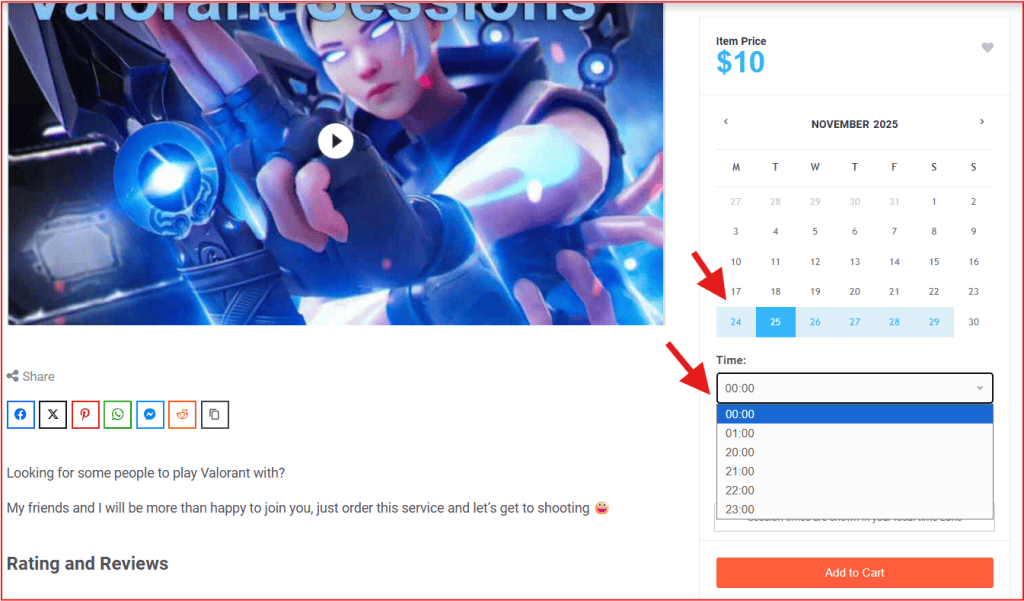
Customers don’t need to understand your availability rules or work out when you’re free. They simply choose from the dates and times you’ve made available.
Better still, StackedGame automatically converts your availability into the customer’s timezone. 🌎
So if you’re on one side of the world and your customer is on the other, nobody needs to start Googling timezone calculators.
🕹️ You set when you’re available. They choose when to book. StackedGame handles the timezone maths.
🌎 Your Timezone
Before setting your availability, make sure your timezone is correct.
The updated Availability Editor makes this much easier than before because you don’t need to convert your availability to UTC.
Simply enter your availability using your own local time. ⏰
If you’re available from 6:00pm to 9:00pm, enter:
🟢 6:00pm – 9:00pm
That’s it.
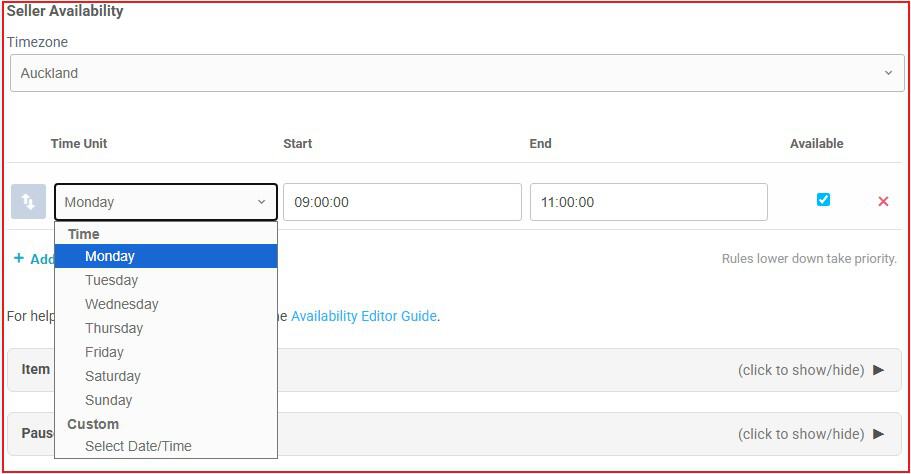
StackedGame automatically converts those times for customers when they visit your item or booking page.
For example, if you’re in Perth and your customer is in New York, you don’t need to calculate the time difference yourself. Your availability is converted so the customer sees the relevant booking times in their own timezone.
🌐 Set your local time and let StackedGame handle the conversion.
⚙️ Setting Up Your Availability
The Availability Editor has been simplified around two main Time Unit options:
- 📅 Day of the Week
- 🗓️ Custom (Date/Time)
These two options let you create your normal weekly schedule while also handling one-off changes such as holidays, appointments or additional availability.
To create an availability rule, click + Add.
From there:
- 📅 Choose your Time Unit.
- ⏰ Enter the relevant day, date and time.
- ✅ Decide whether that period should be Available or Unavailable.
- ➕ Add additional rules as required.
You can create multiple rules to build a schedule that matches when you actually want customers to be able to book you.
📅 Day of the Week
Use Day of the Week to set your regular weekly availability.
This is the option you’ll probably use most often.
Choose a day, enter your start and end times and leave the Available checkbox selected.
For example:
📅 Monday
⏰ 9:00am – 11:00am
✅ Available
This tells the booking system that customers can book you every Monday between 9:00am and 11:00am.
Want to offer another day?
Add another rule:
📅 Tuesday
⏰ 1:00pm – 4:00pm
✅ Available
And another:
📅 Saturday
⏰ 10:00am – 2:00pm
✅ Available
Add as many days and time periods as you need to create your normal weekly schedule.
Maybe you’re only available after work. Maybe weekends are your thing. Maybe Tuesday mornings are somehow your gaming prime time. 🎮
There’s no right schedule. Set the hours that work for you.
🚫 Setting Times as Unavailable
Availability rules aren’t limited to telling customers when you’re free.
You can also use them to specify when you’re not available.
Create the relevant rule and leave the Available checkbox unchecked.
The basic principle is simple:
✅ Available checked – Customers can book this time.
❌ Available unchecked – Customers can’t book this time.
This gives you control over your schedule without having to rebuild your availability every time something changes.
📆 Custom Date & Time
Regular weekly availability is great until real life decides otherwise.
That’s what Custom (Date/Time) is for.
Instead of creating a recurring rule for a particular day of the week, Custom lets you specify an exact start date and time and end date and time.
It’s ideal for one-off changes to your normal schedule.
Going on holiday? ✈️ Taking a weekend off? 🏖️ Got exams coming up? 📚 Heading to a gaming convention? 🎮 Planning to vanish for three days because a new release has consumed your existence?
Use a Custom rule.
✈️ Blocking Out a Holiday
Say you’re normally available every Monday and Tuesday, but you’re going away for a couple of weeks.
Create a Custom rule covering the entire period:
▶️ Start: 10 September, 9:00am
⏹️ End: 20 September, 11:59pm
❌ Available: Unchecked
That period is now marked as unavailable for bookings.
Once the blocked period ends, your normal recurring availability can continue.
No need to delete your usual Monday and Tuesday rules and then try to remember what they were when you get home.
➕ Adding One-Off Availability
Custom rules can also work in the opposite direction.
Maybe you’re normally unavailable on a Friday but you’ve suddenly got a free afternoon and wouldn’t mind picking up a few bookings.
Create a Custom (Date/Time) rule for that specific period and select the Available checkbox.
For example:
▶️ Start: Friday 21 August, 1:00pm
⏹️ End: Friday 21 August, 5:00pm
✅ Available: Checked
You’ve now created an additional booking window without changing your normal weekly schedule.
This makes Custom rules useful for both sides of your calendar:
🚫 Block time when you’re busy.
🟢 Add time when you’re unexpectedly free.
🧩 Using Multiple Availability Rules
You aren’t limited to a single availability rule.
In fact, combining rules is what allows you to create a schedule that actually reflects your life rather than pretending every week goes perfectly according to plan.
For example, your normal schedule might be:
📅 Monday: 6:00pm – 9:00pm – ✅ Available
📅 Wednesday: 6:00pm – 9:00pm – ✅ Available
📅 Saturday: 10:00am – 4:00pm – ✅ Available
Then you might add:
✈️ 15-22 December: ❌ Unavailable
Your Day of the Week rules establish your regular booking schedule.
Your Custom rule overrides that schedule for the period when you’re unavailable.
Once that period has passed, your normal weekly schedule continues.
You can add multiple rules as needed to build availability around work, school, holidays, other commitments or simply the times you actually feel like gaming.
🔄 How Availability Rules Work Together
The Availability Editor uses your rules together to determine which times customers can book.
Think of your Day of the Week rules as the foundation of your regular schedule.
For example:
📅 Monday: 6:00pm – 9:00pm – ✅ Available
📅 Wednesday: 6:00pm – 9:00pm – ✅ Available
📅 Saturday: 10:00am – 4:00pm – ✅ Available
These rules establish when you’re normally open for bookings.
You can then use Custom (Date/Time) rules to make exceptions.
🏖️ Going away? Add a Custom rule and mark the period unavailable.
🎮 Got an extra free afternoon? Add a Custom rule and mark it available.
This lets you maintain a consistent weekly schedule without constantly changing it whenever something comes up.
💡 Tips for Setting Your Availability
A little planning can make your listing much easier for customers to book.
🎯 Keep Your Availability Realistic
Don’t open every hour of every day unless you’re genuinely prepared to be booked during those times.
More availability can create more opportunities, but only if you can actually honour the bookings.
🌎 Offer Different Booking Times
If possible, provide availability across different days and times.
StackedGame is a global marketplace, so offering some variety can make it easier for customers in different parts of the world to find a suitable booking time.
📆 Use Custom Rules When Plans Change
Holidays, work, school and life happen.
Instead of changing your regular schedule, use a Custom rule to block the affected period.
⏰ Check Your Timezone
Make sure your timezone is accurate before publishing your availability.
StackedGame handles the conversion for customers, but it needs the correct starting point.
🔄 Keep Your Availability Up to Date
If your routine changes, update your availability.
An accurate schedule makes booking easier for customers and helps prevent the awkward conversation where someone has paid to play with you and you’re actually at work. 😬
🚀 Make Your Gaming Time Count
Whether you’re coaching a player, joining someone for a gaming session or meeting online to complete another type of order, the Availability Editor makes it easy to decide when your time is available to customers.
📍 Set your timezone.
📅 Add your regular weekly availability.
🚫 Block out dates when you’re busy.
➕ Add extra availability when you’re free.
Your customers see the available dates and times in their own timezone, choose a slot that works and book your time.
You stay in control of your schedule while making it easier for players around the world to connect with you.
And that’s really the point.
🎮 Set your availability, share what you’re good at and start earning from doing what you love. 🚀