
When a Seller uploads a Session item to the marketplace, they’ll see the Session Availability Editor, a built-in tool for defining when the session can be booked.
The Availability Editor lets Sellers easily setup the dates and times they are available for session bookings as well as the dates and times they’re not available.
The configured Seller’s availability is displayed on the Session Booking page in the date/time calendar picker section – with available date slots highlighted in blue and available times displayed in the drop down below it.

Fast Travel
Setting-Up Availability Rules
Once you have set up your Session Length and confirmed if the Session is part of a Session Package – it’s time to move on to the availability rules. From here we will set up the available dates and times for a session.
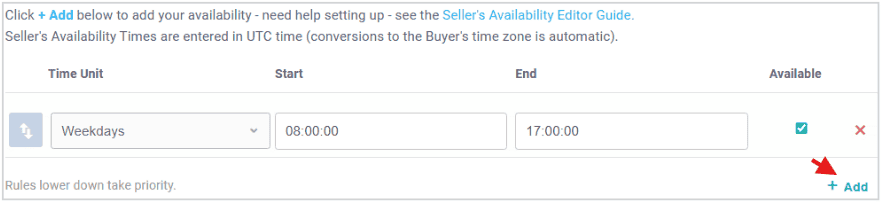
It’s best to explain how this works with a couple of examples. First off, click on the + Add link on the bottom right button to create new availability rule.
Seller’s Availability Times are always entered in UTC time – so you’ll need to convert you available to UTC time when you enter it. After that all time zone conversions are taken care of. Buyers see the Seller’s availability in their time zone and Sellers see the booked session in their time zone (that they maintain in the Seller Profile).
Multiple Availability Rules
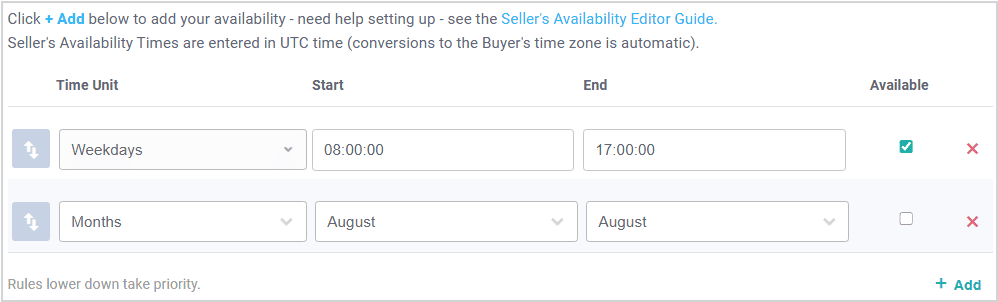
The Session Availability Editor is flexible enough to allow for multiple ranges to be set. For example, the image below allows for availability on Weekdays between the times of 8am and 5pm during the months January to July AND September to December.
How it works
The Availability Editor works by using an additive/subtractive system.
This means that each row is responsible for influencing the rows above it in the Editor. This can be either adding available times to them or removing available times from them. For this reason, the order of the rows is very important!
Consider the example we mentioned above. The first row is adding all times between 8am and 5pm for week days as available, while the second row is removing the month of August from it.
Here’s another example. Say you only want available times to be on Tuesdays and Weekends during the months of summer, say from the beginning of June till the end of September.

- The first row is adding all Tuesdays from 9am till 4pm as available times.
- The second row is adding all Weekends from 9am till 4pm to the Tuesday row above it.
- Finally, the last row is removing the months from October till May from the two rows above it.
Session Time Units
The Availability Editor comes with a variety of different time units. In this section we’ll go over them one by one and explain them.
Days
This unit allows you to specify a range of days (Monday, Tuesday, etc.). The availability for the range will apply to all the sessions in the range as well as all times in those days. Example: Start: Tuesday, End: Friday.
This will apply to all sessions during the week days of Tuesday, Wednesday, Thursday and Friday.
Weeks
This unit allows you to specify a range of weeks in year. The range values represent the week number in the range 1 to 52. Example: Start: Week #5, End: Week #10.
This will apply to all sessions between, and including, the fifth and the tenth weeks of the year.
Months
This unit allows you to specify a range of months (January, February, etc.). The availability will apply to all sessions in the range of selected months. Example: Start: May, End: July.
This will apply to all sessions during the months of May, June and July.
Custom
This unit allows you to specify a custom date range. The availability will apply to all sessions between the given dates and times. Example:
Start: 12/24/2015 10:00, End: 01/02/2016 18:00.
This will apply to all sessions between, and including, the 24th of December at 10am and the 2ndof January at 6pm.
Time (Monday, Tuesday, …)
These set of units allow you to specify a range of time for a given week day. The availability will apply to all sessions during those times for the selected weekday. Example: Saturday – Start: 12:00, End: 19:00.
This will apply to all sessions on Saturdays between noon and 7pm.
Time Groups (All Week, Weekdays, Weekend)
These particular sets of units are groups of regular Time units. They are for your convenience to avoid having to add multiple rows for specific days if they share the same time range.
All Week
This unit is identical to having a Time Unit for all days of the week (Monday – Sunday). Example:
All Week – Start: 14:00, End: 20:00.
This will apply to all sessions between 2pm and 8pm.
Weekdays
This unit is identical to having a Time Unit for all days except the weekend, i.e. Monday to Friday. Example: Weekdays – Start: 14:00, End: 20:00.
This will apply to all sessions on Mondays, Tuesdays, Wednesdays, Thursdays and Fridays between 2pm and 8pm.
Weekend
This unit is identical to having a Time Unit for both Saturday and Sunday, only. Example: Weekend – Start: 14:00, End: 20:00.
This will apply to all sessions on Saturdays and Sundays between 2pm and 8pm.
Get Started Selling Sessions
Now that you know how the Session Availability Editor works, it’s the perfect time to put it into action. Try uploading a session, set your availability, and make it easy for buyers around the world to book time with you.
The more availability you offer, the more opportunities you create to connect, earn, and grow your presence on the StackedGame.com marketplace.